Frame Rate Test
Open SiteFrame Rate Test is a free, no-install browser tool that measures live FPS, estimates your display refresh rate (Hz), and lets you compare 240, 120, 60, 30, and 15 FPS motion. It is meant to show whether stutter comes from the device, the browser, or the display.
Added on November 24, 2026
Product Information
What is Frame Rate Test?
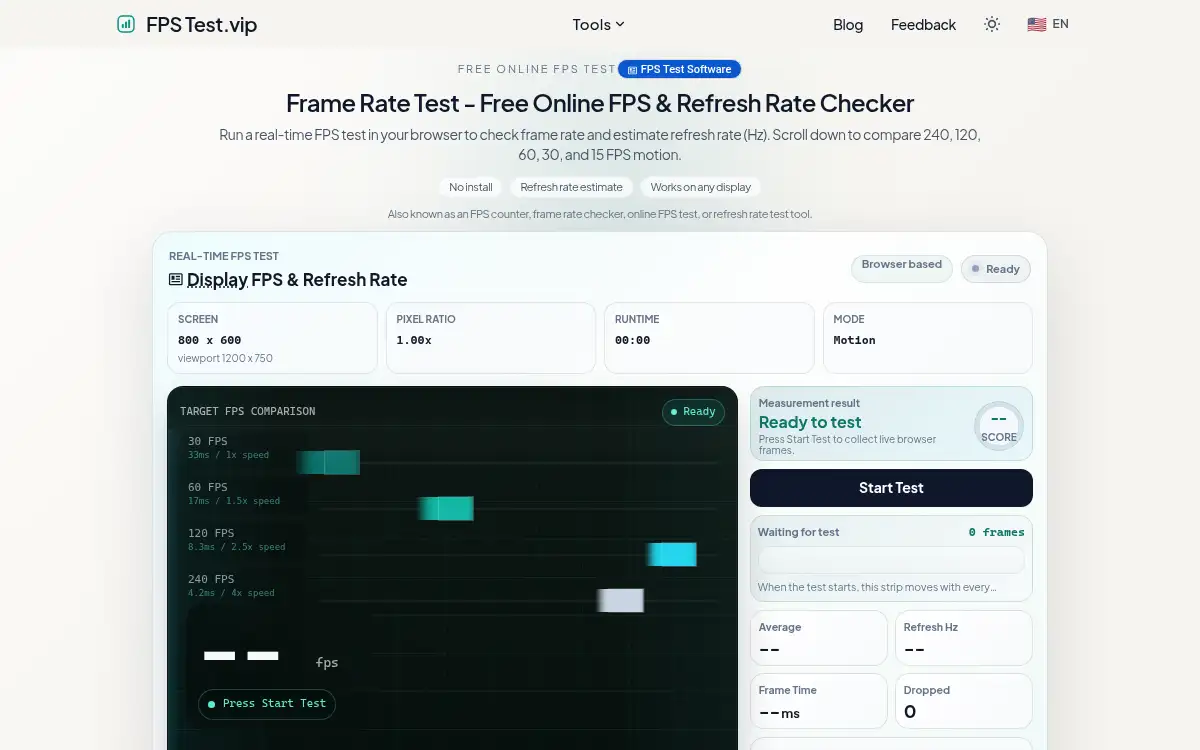
Frame Rate Test (fpstest.vip) is a privacy-first FPS and refresh-rate checker that runs entirely in the browser. You start a real-time test, the page samples browser frames, and you get a live FPS reading plus a rolling 30-second history, along with frame time, dropped frames, stability, pacing, and jitter. It also estimates the display refresh rate in Hz and includes a motion-comparison section so you can see how 240, 120, 60, 30, and 15 FPS look side by side. A stress control adds more moving objects if you want to see how load affects FPS. Results stay in the browser and are not stored as test data; no account or install is required. Companion pages cover related checks such as a 120 FPS test, phone or monitor FPS tests, refresh-rate testing, and a frame-time calculator.
How to use Frame Rate Test?
- 1. Open fpstest.vip in a browser — no install or account is required
- 2. Press Start Test and let the page collect live browser frames; a moving strip confirms that measurement is in progress
- 3. Read the live FPS, estimated refresh rate (Hz), frame time, dropped-frame count, stability, pacing, and jitter, and watch the last-30-seconds FPS history
- 4. Optionally raise the stress level to draw more moving objects and see whether FPS drops under load
- 5. Scroll to the motion comparison to judge 240, 120, 60, 30, and 15 FPS by eye, or open a companion tool such as the 120 FPS or refresh-rate test if you need a narrower check
Core Features
- • Real-time FPS measurement — Samples browser frames and shows a live reading with a rolling 30-second history chart
- • Refresh-rate estimate — Reports an estimated display refresh rate in Hz from the measured performance
- • Extra timing metrics — Frame time, dropped frames, stability, pacing, and jitter sit alongside the headline FPS number
- • Stress control — Increase the number of moving objects to see how load affects the measured frame rate
- • Motion comparison — Side-by-side examples of 240, 120, 60, 30, and 15 FPS so you can judge smoothness visually
- • No install or signup — The core test is free and runs locally in the browser; test data is not stored
- • Companion tools — Related pages for 120 FPS, phone/screen/monitor checks, refresh-rate testing, FPS comparison, and a frame-time calculator
Use Cases
- • Check whether a new monitor or phone is actually delivering the refresh rate you expect, from inside the browser
- • Compare 240, 120, 60, and 30 FPS motion when you are deciding if an upgrade or a settings change is worth it
- • Raise the stress level to see if stutter appears only under load, which can point to the device or the browser rather than the panel
- • Use frame time, dropped frames, and jitter together with the FPS chart when a display “feels off” but the average FPS still looks fine