Mic Test
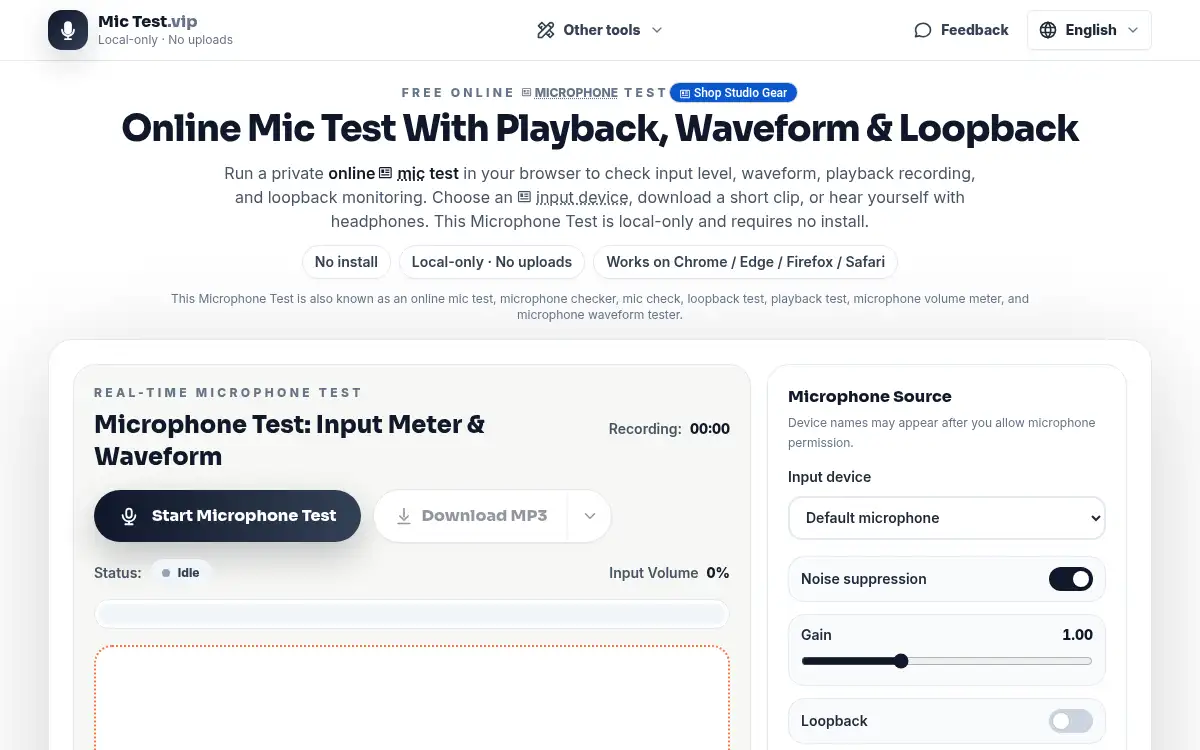
Open SiteMic Test is a free, browser-based microphone checker that shows live input level and waveform, lets you play back or download a local recording, and supports loopback monitoring with headphones. Everything stays on your device—no uploads or install—so you can confirm a mic works before a call, stream, or recording session.
Added on November 25, 2026
Product Information
What is Mic Test?
Mic Test (mictest.vip) is a private online microphone test that runs entirely in the browser. After you allow microphone permission, it shows a real-time input meter and waveform, reports the current input device and session settings (sample rate, channels, latency, and processing flags such as echo cancellation, noise suppression, and auto gain), and lets you start or stop the test without leaving the page. You can switch input devices, optionally enable loopback to hear yourself through headphones, and download a short local clip as MP3 or uncompressed WAV. The site also offers focused variants—loopback, playback, volume, quality, headset, Bluetooth, AirPods, and webcam mic tests—plus guides for browser permissions and pre-call checks in Zoom, Teams, Meet, and Discord. It requires a modern browser over HTTPS and does not upload your audio.
How to use Mic Test?
- 1. Open mictest.vip in a modern browser (Chrome, Edge, Firefox, or Safari) — no account or install is required
- 2. Click Start and allow microphone permission when the browser asks
- 3. Speak normally and watch the volume meter and waveform; if nothing moves, pick a different input device, unmute the mic, or raise the system input level
- 4. Optionally turn on Loopback (wear headphones to avoid feedback) to hear yourself, or download a short MP3 or WAV clip to check how you sound
- 5. If you changed advanced constraints such as echo cancellation, noise suppression, or gain, restart the test so the new settings apply
Core Features
- • Live input meter and waveform — See volume and peak respond as you speak, so you can catch silence, low level, or clipping right away
- • Local recording and playback — Record a short sample in the browser and download MP3 (smaller, widely playable) or uncompressed WAV for closer listening
- • Loopback monitoring — Hear your microphone through headphones to check delay, echo, and tone without uploading audio
- • Device and session diagnostics — After permission is granted, inspect the selected input, sample rate, channels, latency, and whether echo cancellation, noise suppression, and auto gain are on
- • Advanced getUserMedia options — Tune echo cancellation, auto gain, and related constraints, then restart the test to apply them
- • Focused test pages — Dedicated flows for loopback, playback, volume, quality, headset, Bluetooth, AirPods, webcam, and combined speaker-plus-microphone checks
- • No uploads — The test is local-only over HTTPS; audio is not sent to a server
Use Cases
- • Confirm a new USB, headset, or laptop microphone works before a Zoom, Teams, Meet, or Discord call
- • Find the correct input when several microphones are connected, including Bluetooth or AirPods routing issues
- • Catch low volume, clipping, or the quality drop that happens when a Bluetooth headset falls into hands-free mode
- • Record a short local clip to compare two mics or check how you sound at different distances
- • Troubleshoot a silent mic by checking browser permission, device selection, and whether another app already has exclusive access